

Overview
To streamline the process of setting up new servers, Nodex provides built-in integrations with several major cloud compute providers like Vultr and DigitalOcean. You can create compute instances and connect them to Nodex as nodes without leaving the dashboard.Purpose
To create instances for you, Nodex needs a connection to your cloud provider account. The connection lets Nodex perform the following actions on your behalf:- Create compute instances in your account
- Destroy compute instances that Nodex previously created
- Fetch the instance sizes (or plans) available to your account
- Fetch the regions available to your account
- Fetch the instances associated with your account
These actions manage real compute instances with your cloud provider, billed at their standard rate as if you’d created them manually. Nodex has no control over your provider’s charges.
Your connections
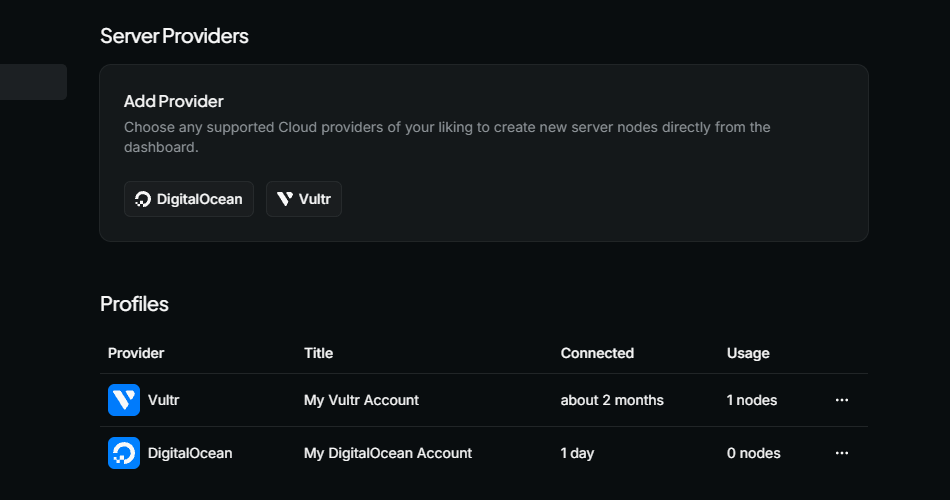
The connections to your Nodex account are listed in Settings > Providers. Each connection shows its title, its connection date, and the number of nodes created with it.Add a connection
You may add an unlimited number of connections to Nodex. To create a new connection:- Navigate to Settings > Providers
- In the Add Provider card, click the button for the cloud provider you want to connect
- Follow the instructions in the dialog to complete the connection
Create a node from a connection
To create a new compute instance using a connection:- Navigate to Settings > Providers
- Scroll down to the Profiles section
- Click the button on the right side of the connection, then click + Create Node. Nodex opens the node creation page. Continue with the steps in Create nodes.
Update a connection
To organize your provider connections, you may edit some of their properties. To do so:- Navigate to Settings > Providers
- Scroll down to Profiles section
- Click the button on the right side of the connection, then click Edit. A dialog appears.
Delete a connection
You may delete provider connections that no longer have any associated active nodes. To delete an existing connection:- Navigate to Settings > Providers
- Scroll down to Profiles section
- Click the button on the right side of the connection, then click Delete.