> ## Documentation Index
> Fetch the complete documentation index at: https://docs.nodexpanel.com/llms.txt
> Use this file to discover all available pages before exploring further.
# Server Overview
> Control a server, watch its console, and monitor its status.
 ## Overview
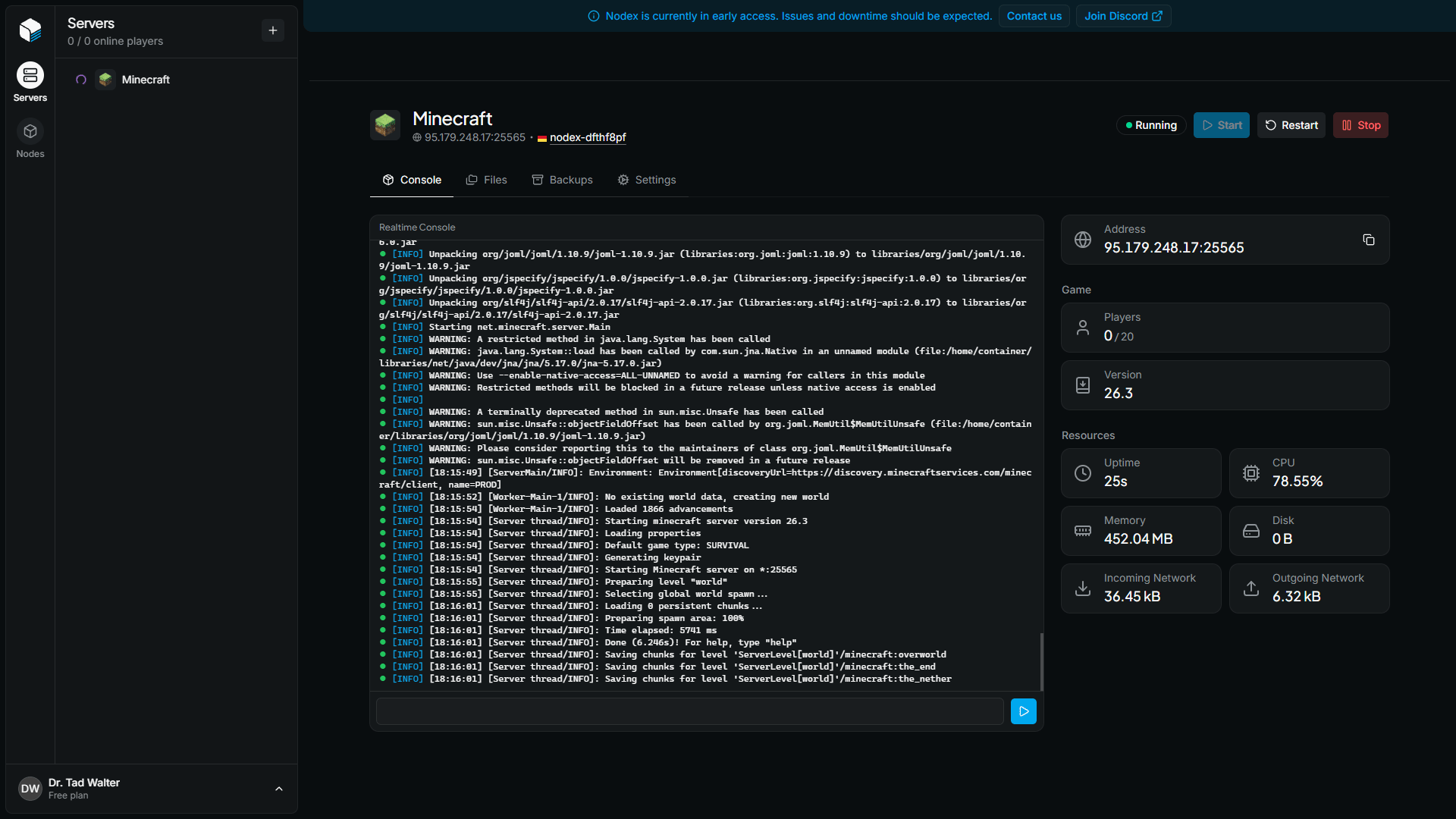
The server overview page is the home of a [server](/servers). It contains the server's console, its power controls, and live information about the game and its resource usage.
To open it, click a server in the server list of its [node](/node-overview). The page is the **Console** tab of the server.
## Server header
The header at the top of the page identifies the server. It displays:
* The server's title
* The address players use to join, made of the node's IP and the server's primary port
* The node the server runs on. Click it to open the [node overview](/node-overview).
The badge next to the title shows the server's [state or activity](/servers#server-states). Below the header, the tabs let you switch between the server's **Console**, **Files**, **Backups**, and **Settings**.
## Power controls
The buttons on the right side of the header control the server's process:
| Button | Description |
| :- | :- |
| Start | Starts the server. Available while the server is offline. |
| Restart | Stops the server and starts it again. |
| Stop | Stops the server. Available while the server is starting or running. |
| Force Stop | Terminates the server process immediately. Replaces **Stop** while the server is stopping. |
All power controls are disabled while the server has an [activity](/servers#server-activities) in progress.
## Console
The console shows the output of the server, and updates live while the page is open. To run a command, type it in the input field at the bottom of the console and press **Enter**, or click the execute button.
## Server information
The panel on the right shows information about the server.
### Address
The address players use to join the server.
### Game
The **Game** section shows what is happening inside the game:
| Metric | Description |
| :- | :- |
| Players | The number of players online and the server's maximum. Below it, a list shows the name of each connected player. |
| Map | The map the server is currently playing. |
| Version | The version of the game the server is running. |
Nodex shows only the values that the game reports.
### Resources
The **Resources** section shows how much of the node's resources the server is using:
| Metric | Description |
| :- | :- |
| Uptime | How long the server has been running. |
| CPU | The processor load of the server. |
| Memory | The RAM used by the server. |
| Disk | The disk space used by the server. |
| Incoming Network | The amount of data the server has received. |
| Outgoing Network | The amount of data the server has sent. |
## Installation status
While a server is installing, a card at the top of the panel shows **Installing Server**. The server starts automatically when installation finishes.
If installation fails, the card changes to **Install Failed**. Click **Retry** to run the installation again.
This documentation is built and hosted on [Mintlify](https://mintlify.com), a developer documentation platform.
## Overview
The server overview page is the home of a [server](/servers). It contains the server's console, its power controls, and live information about the game and its resource usage.
To open it, click a server in the server list of its [node](/node-overview). The page is the **Console** tab of the server.
## Server header
The header at the top of the page identifies the server. It displays:
* The server's title
* The address players use to join, made of the node's IP and the server's primary port
* The node the server runs on. Click it to open the [node overview](/node-overview).
The badge next to the title shows the server's [state or activity](/servers#server-states). Below the header, the tabs let you switch between the server's **Console**, **Files**, **Backups**, and **Settings**.
## Power controls
The buttons on the right side of the header control the server's process:
| Button | Description |
| :- | :- |
| Start | Starts the server. Available while the server is offline. |
| Restart | Stops the server and starts it again. |
| Stop | Stops the server. Available while the server is starting or running. |
| Force Stop | Terminates the server process immediately. Replaces **Stop** while the server is stopping. |
All power controls are disabled while the server has an [activity](/servers#server-activities) in progress.
## Console
The console shows the output of the server, and updates live while the page is open. To run a command, type it in the input field at the bottom of the console and press **Enter**, or click the execute button.
## Server information
The panel on the right shows information about the server.
### Address
The address players use to join the server.
### Game
The **Game** section shows what is happening inside the game:
| Metric | Description |
| :- | :- |
| Players | The number of players online and the server's maximum. Below it, a list shows the name of each connected player. |
| Map | The map the server is currently playing. |
| Version | The version of the game the server is running. |
Nodex shows only the values that the game reports.
### Resources
The **Resources** section shows how much of the node's resources the server is using:
| Metric | Description |
| :- | :- |
| Uptime | How long the server has been running. |
| CPU | The processor load of the server. |
| Memory | The RAM used by the server. |
| Disk | The disk space used by the server. |
| Incoming Network | The amount of data the server has received. |
| Outgoing Network | The amount of data the server has sent. |
## Installation status
While a server is installing, a card at the top of the panel shows **Installing Server**. The server starts automatically when installation finishes.
If installation fails, the card changes to **Install Failed**. Click **Retry** to run the installation again.
This documentation is built and hosted on [Mintlify](https://mintlify.com), a developer documentation platform.